Timetable, To-Dos and Study Timer: How One Day Flows in Damda
Follow one day through Damda: a class on your timetable, a to-do, a Pomodoro focus timer, a 3D hamster study hall, then your records and levels.
If you've tried a few planner apps, this may sound familiar. Your class schedule lives in one app, your to-do list in another, and your study time in a third. One day you just stop opening one of them.
Damda keeps those pieces in one timetable and study planner. A day that starts in one block of your timetable leads to a to-do, a focus session, a seat in the study hall and your records, then back to the timetable the next day. Let's follow that path from start to finish.
The path at a glance
- Put your week on the timetable.
- Check what's coming up on the Today tab.
- Pick what to focus on and start the timer.
- Take a seat at an empty desk in the study hall, and your hamster sits there with you.
- When you finish, your records and XP grow and you level up.
- Dress your hamster in the outfits you've earned, then start again from your timetable the next day.
1. Timetable: your week at a glance
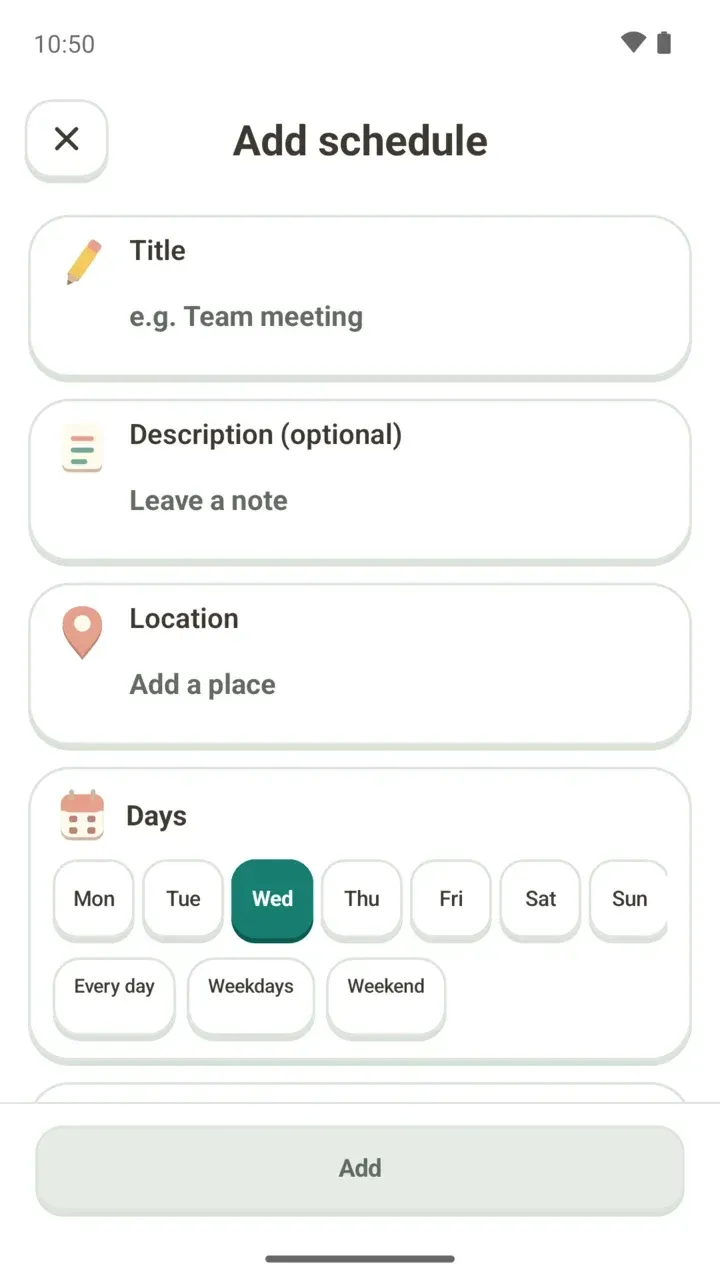
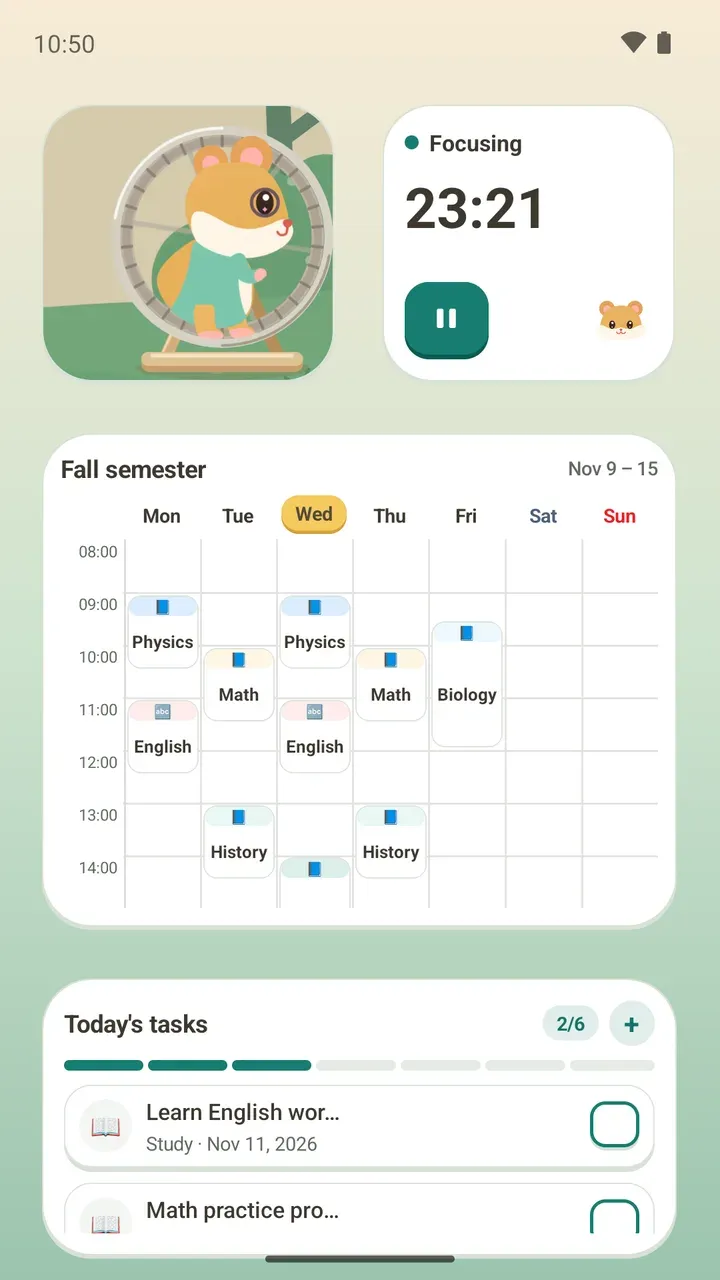
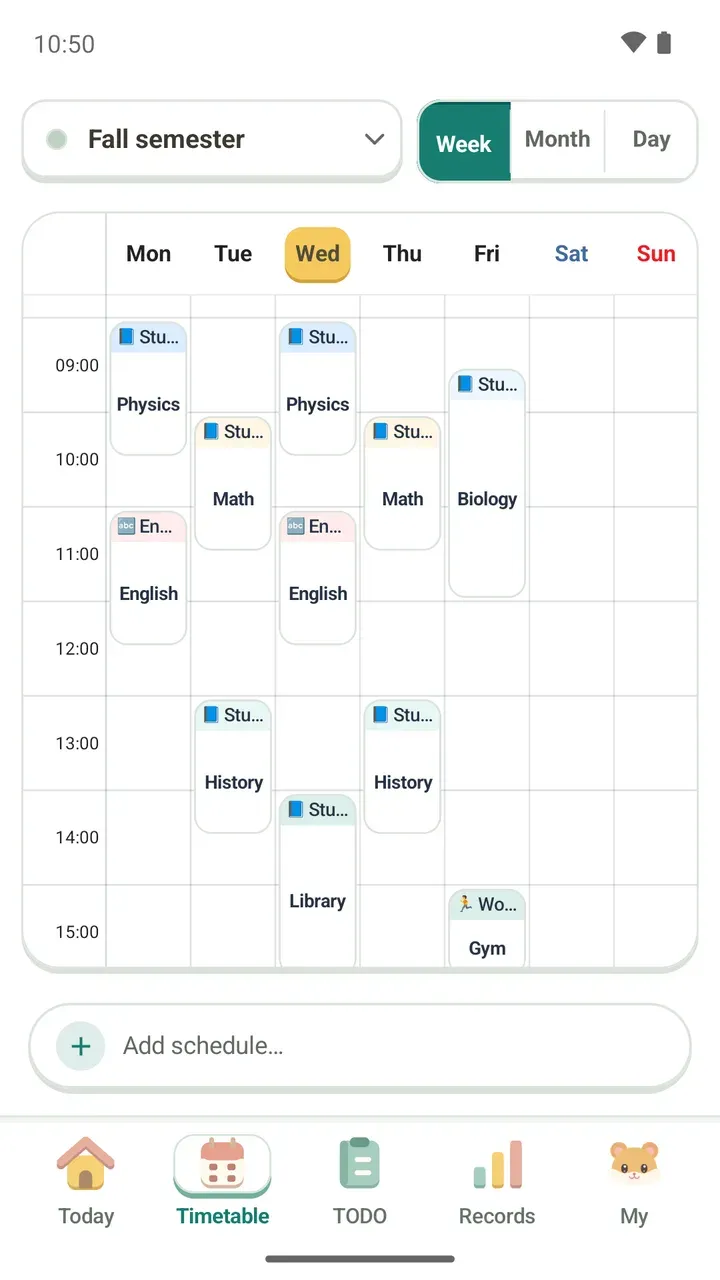
Everything in Damda starts with the timetable. Add the things that come back every week, like classes, work shifts, practice or the gym, and Monday to Sunday fits on one screen.
You can switch between Week, Month and Day views, and home screen widgets show it without opening the app. To set yours up, see how to build a weekly timetable.
2. Today tab: one thing to do now
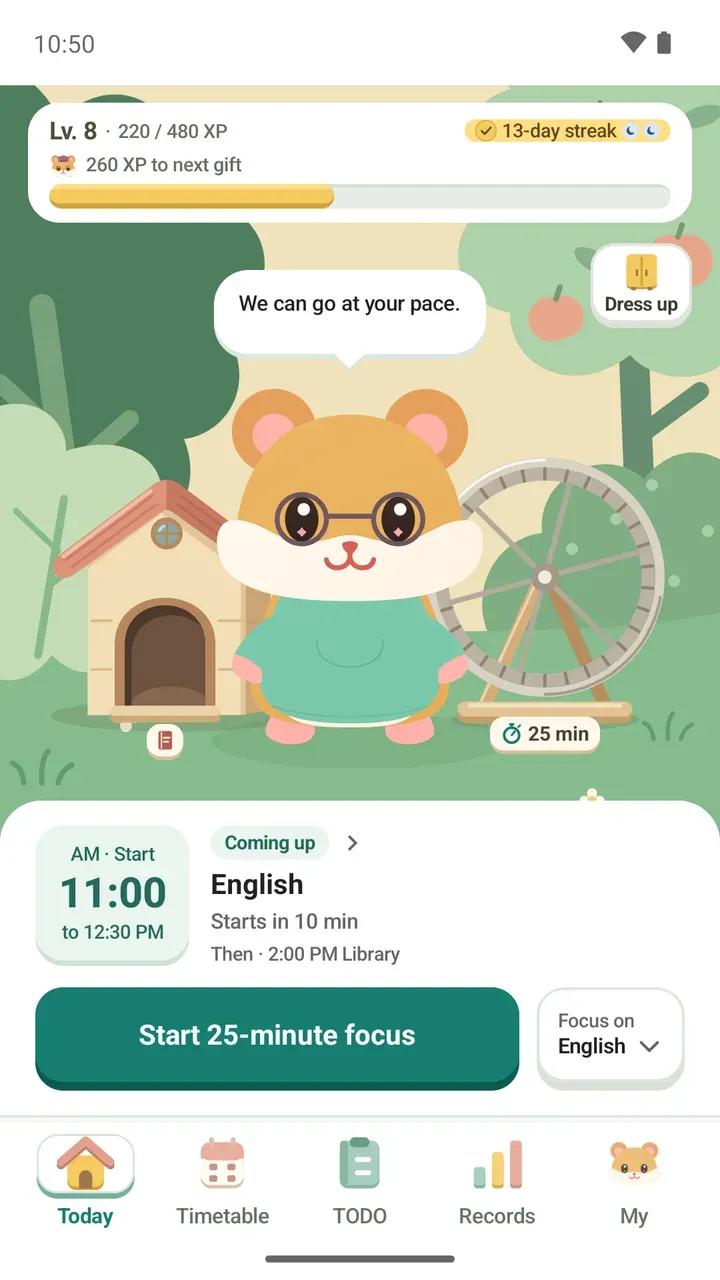
When you open the app, the Today tab comes first. It pulls your next plan from the timetable under Coming up, and you can start focusing right below it. Your hamster may say something in a speech bubble, too.
3. To-dos: what you'll work on
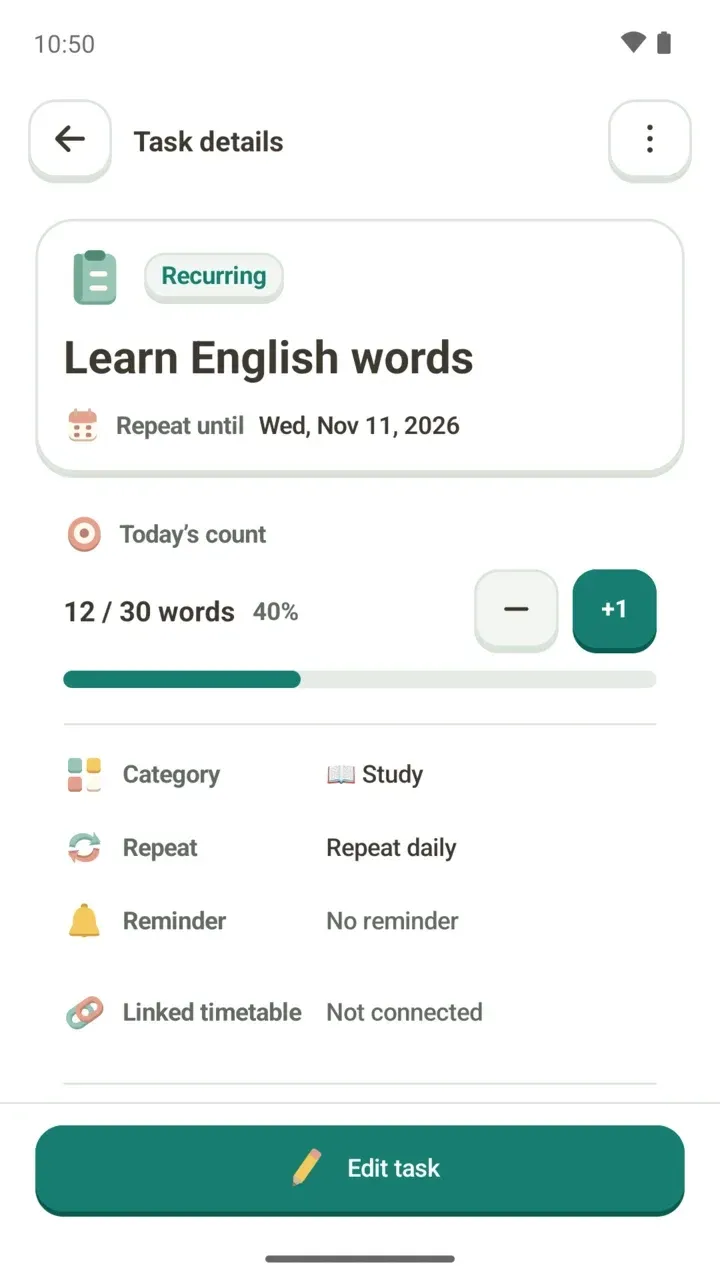
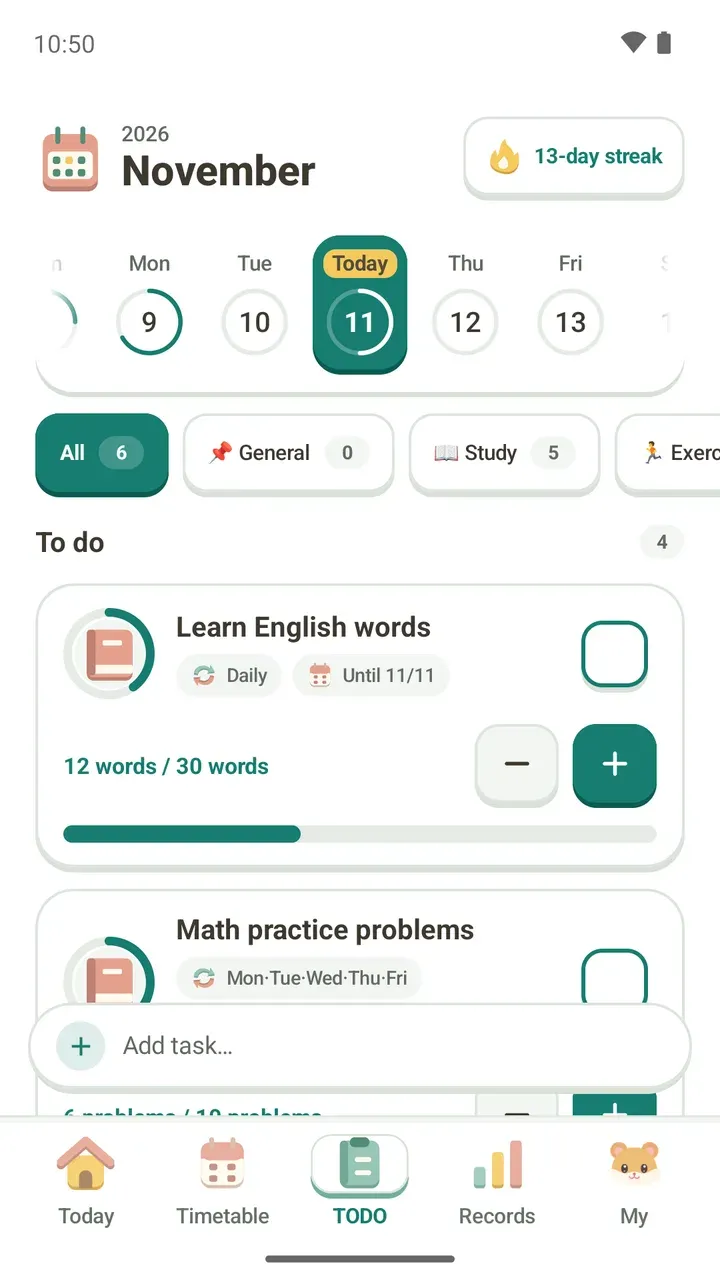
The TODO tab holds what you want to finish today. Some tasks are done with one check. Others have a count to fill, like 30 English words. Tasks you do every day build into a streak.
4. Focus: turning plans into real time
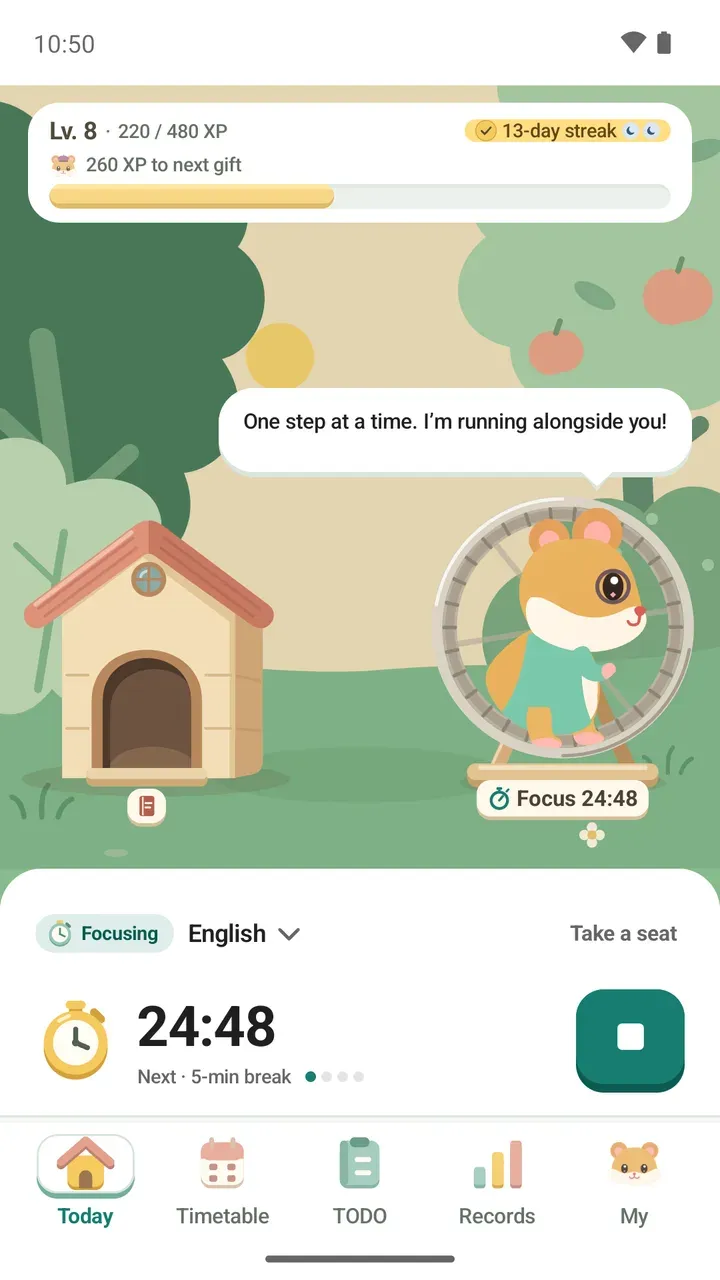
Writing a plan down doesn't change your day on its own. On the Today tab, pick a class or to-do under Focus on and start the timer. The time is counted toward that class or task.
You can focus for a set number of minutes, or use Pomodoro 25/5 with breaks in between.
5. Study hall: you're not studying alone
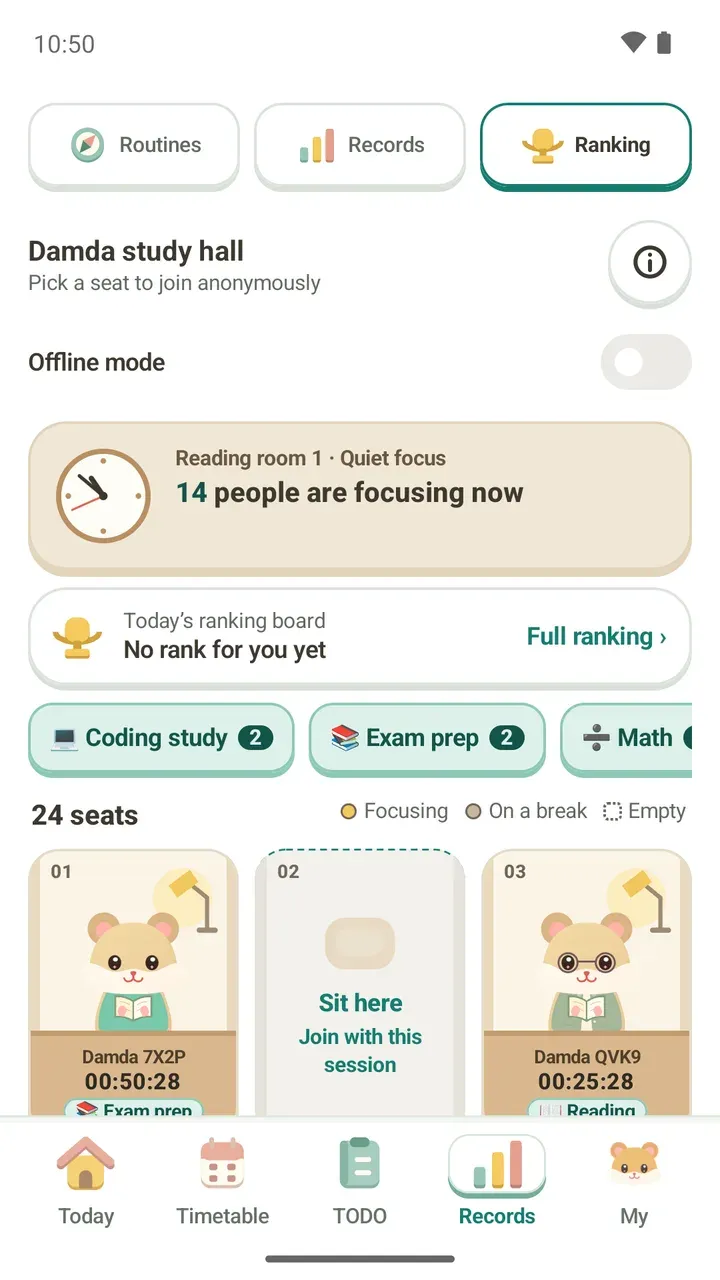
Once you're focusing, try taking a seat in the study hall. Tap Ranking in the Records tab and a 3D reading room of desks opens. Tap an empty desk and your hamster walks over and sits down. Around you, other people's hamsters are quietly studying.
You don't need to talk to anyone or sign up. Others only see a name and a hamster that change every day, and your name, timetable and to-do titles are never uploaded. Once you've picked a seat, your focus time today, activity type, status and seat are shared while you use the focus timer.
On days you'd rather go solo, turn on Offline mode and nothing is uploaded. The full how-to is in the Damda study hall guide.
6. Records and levels: your days add up
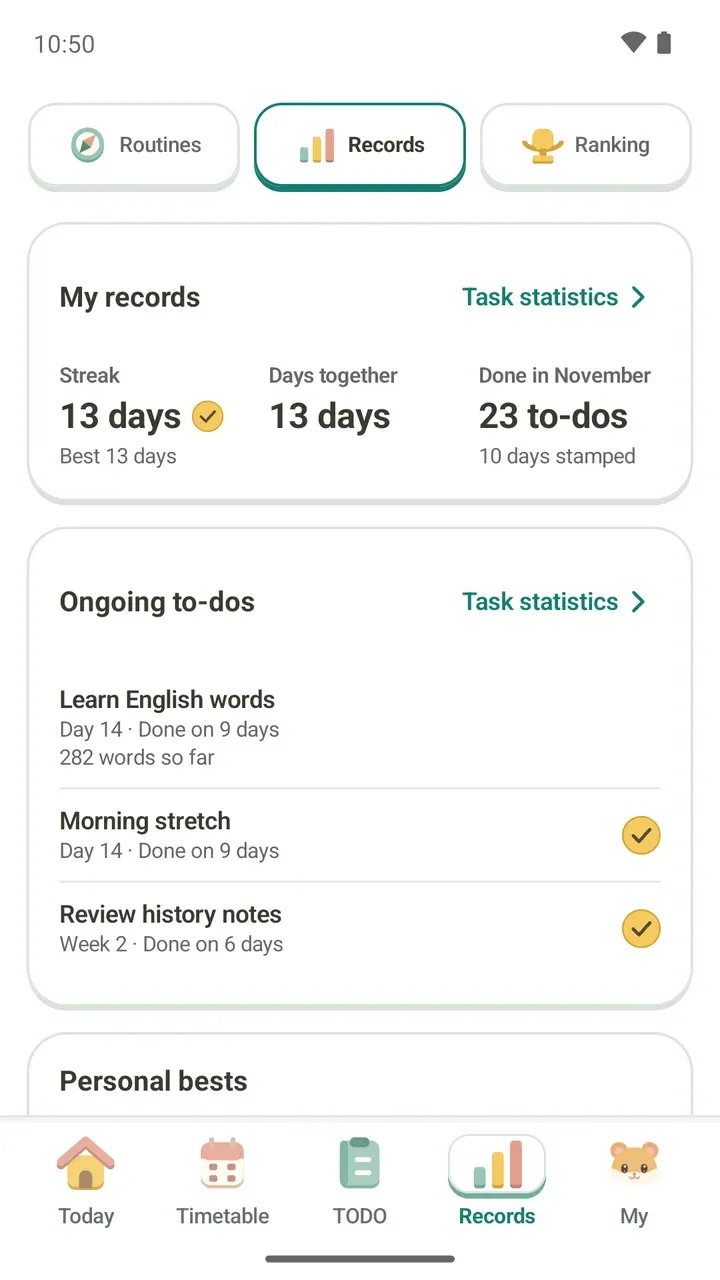
When you finish a session, your focus time and finished to-dos are added to the Records tab. You can see how many days in a row you've kept going and how much you did this week and this month.
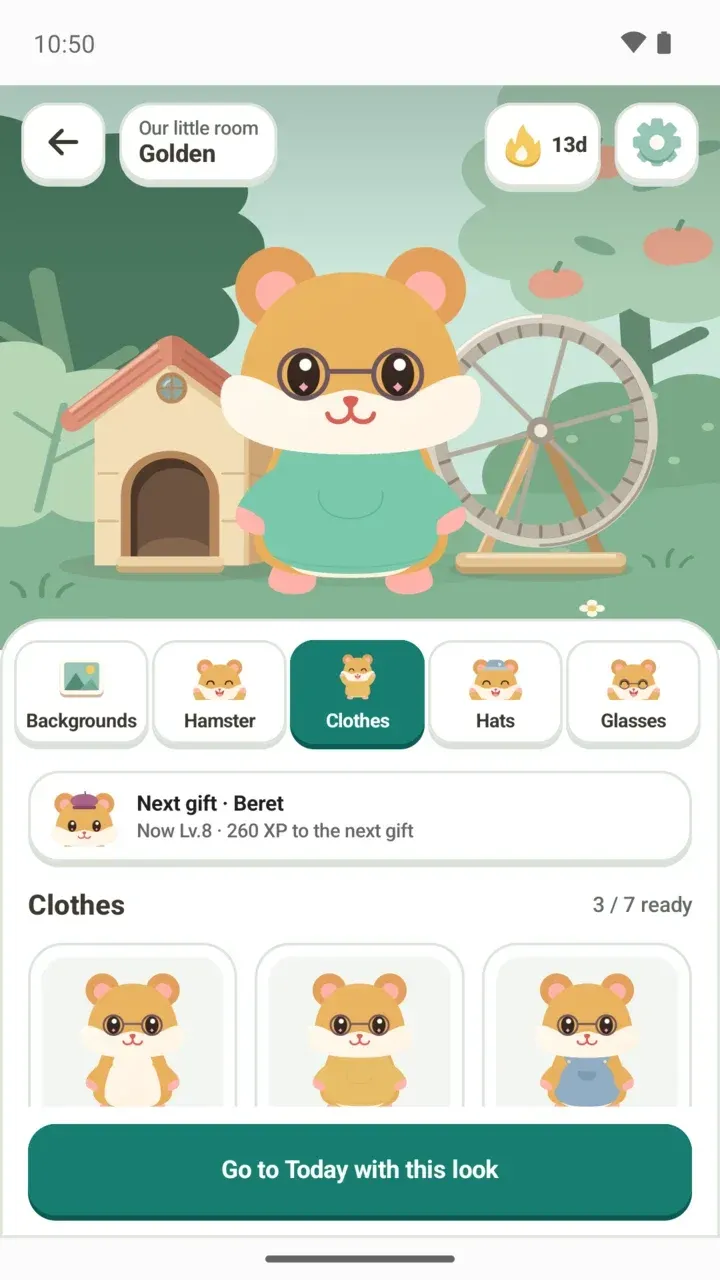
When the XP bar at the top of the Today tab fills, you level up, and levels unlock gifts like outfits for your hamster.
7. Back to the timetable
Dress your hamster in an outfit you earned, and on your screen it sits at its study hall desk in that look the next day. Others still see only a hamster that changes every day.
Then the next morning, your day starts again from the first block of your timetable.
Try it like this
- If you're new, add just this week's timetable and write down one task for today.
- Pick that task under Focus on and focus for just 25 minutes.
- On the focus screen, tap Take a seat and sit at one empty desk.
- The next day, open the Records tab and look at yesterday's numbers.
Damda is an Android app. If you've just installed it, you can also start with Getting started.